Automation and Queue Setup Guide
Configure support automation, queue routing, managed service usage alerts, and resolution rollups.
Scope / When this applies
Use this guide to understand Dove365 Support automation, default queue setup, support mailbox intake, and Queue Item behaviour.
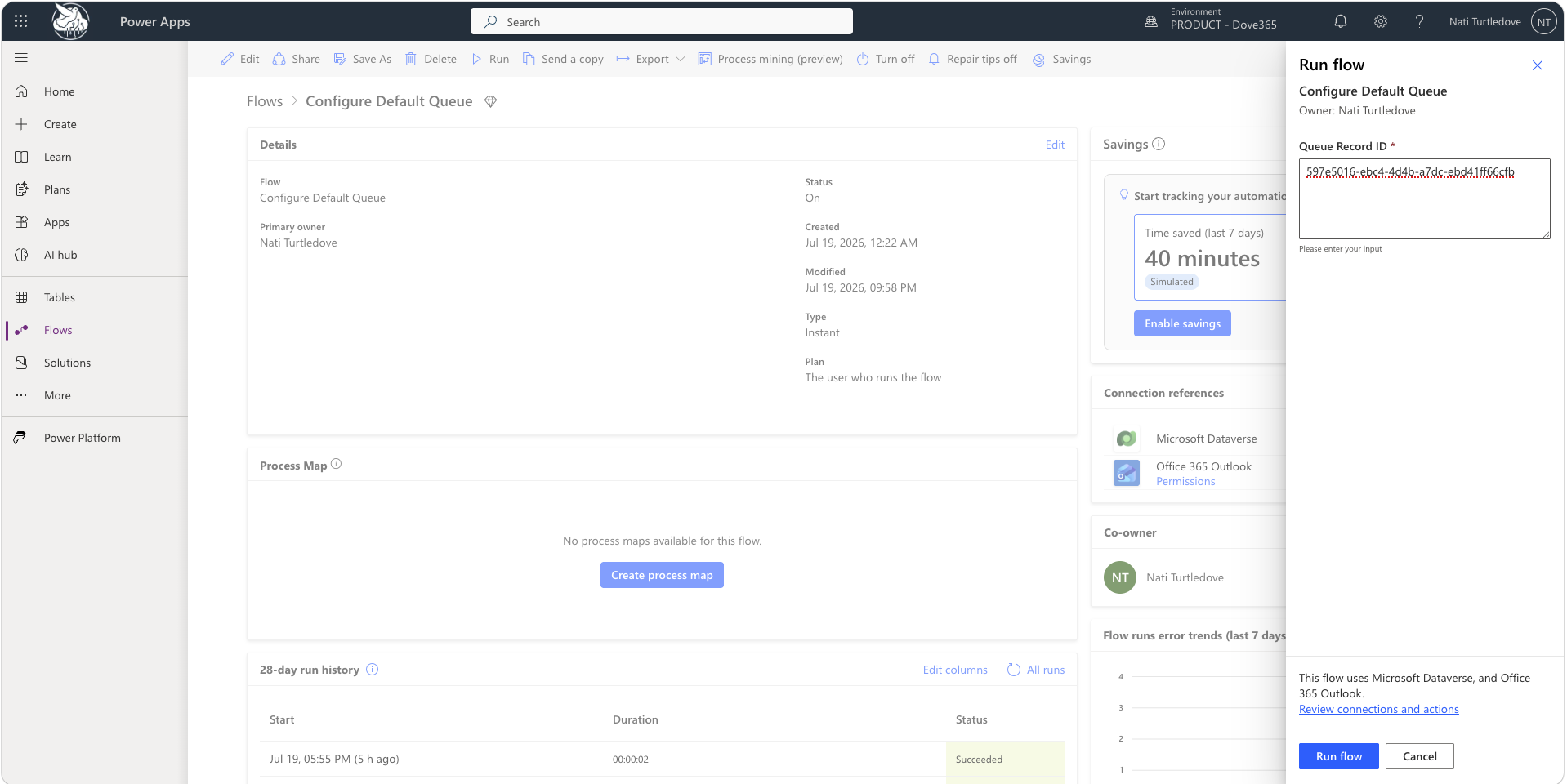
Configure Default Queue
Automation:
Configure Default Queue
When to run:
- Manually after solution import.
- Manually when changing the default queue.
Required input:
- Default Queue GUID.
Purpose:
- Maps the configured default queue so other support automations can place new work into the correct queue.
Admin steps:
- Create or identify the default support queue.
- Copy the Queue GUID.
- Set
dove365_DefaultQueueGUID. - Run
Configure Default Queue. - Confirm new email-created Cases are placed into that queue.
Triage Support Emails to Queue
Automation:
Triage Support Emails to Queue
Purpose:
- Reads the support mailbox.
- Creates Dove365 Support Cases from incoming support emails.
- Adds new Cases to the configured default queue.
Admin checks:
- Support mailbox address is correct.
- Outlook connection is authenticated.
- Dataverse connection is authenticated.
- Default queue GUID is configured.
- The flow can create Case and Queue Item records.
Daily Managed Service 80% Usage Threshold
Automation:
Daily Managed Service 80% Usage Threshold
Purpose:
- Identifies Managed Services at or above 80 percent usage.
- Supports proactive review before allocation is exhausted.
Interpretation:
- 80 percent or above means the Managed Service is approaching allocation.
- 100 percent means the allocation is fully used.
- More than 100 percent means over-allocation.
Monthly Managed Services Allocation Reset
Automation:
Monthly Managed Services Allocation Reset
Purpose:
- Clears or resets monthly allocation usage values for Managed Services.
Admin guidance:
- Confirm reset timing aligns with commercial support periods.
- Confirm reporting expectations before changing schedule.
Notify Case Escalation Manager
Automation:
Notify Case Escalation Manager
Purpose:
- Notifies the escalation manager when a Case is escalated.
Trigger condition:
- A Case is marked as escalated or enters the escalation path.
User guidance:
- Escalate only when manager attention is required.
- Ensure the escalation manager field is populated where required.
Aggregate Managed Service Hours
Automation / plugin-supported process:
Aggregate Managed Service HoursDove365.Support.Plugins.AggregateManagedServicesHours
Purpose:
- Aggregates Support Activity hours for a Case against the related Managed Service.
- Keeps Managed Service usage, remaining hours, and usage percentage aligned with logged service work.
The plugin fires on Support Activity create, update, and delete. For each impacted Case flagged as managed-service related and holding a Managed Services lookup, it recalculates Hours Used, rounded to the nearest quarter hour. Hours Remaining and Usage Percentage then recalculate from that value.
The plugin sums all Support Activity Total Hours for the Case, so every entry the time tracker creates draws down the allocation. No flow aggregates Support Activity time directly — the plugin owns that.
Support Case — Resolve
Automation:
Support Case - Resolve
Purpose:
- Closes a support Case.
- Notifies the customer when the Case is resolved.
User guidance:
- Complete resolution notes before resolving.
- Confirm all Support Activities are entered.
- Confirm Managed Service hours are accurate.
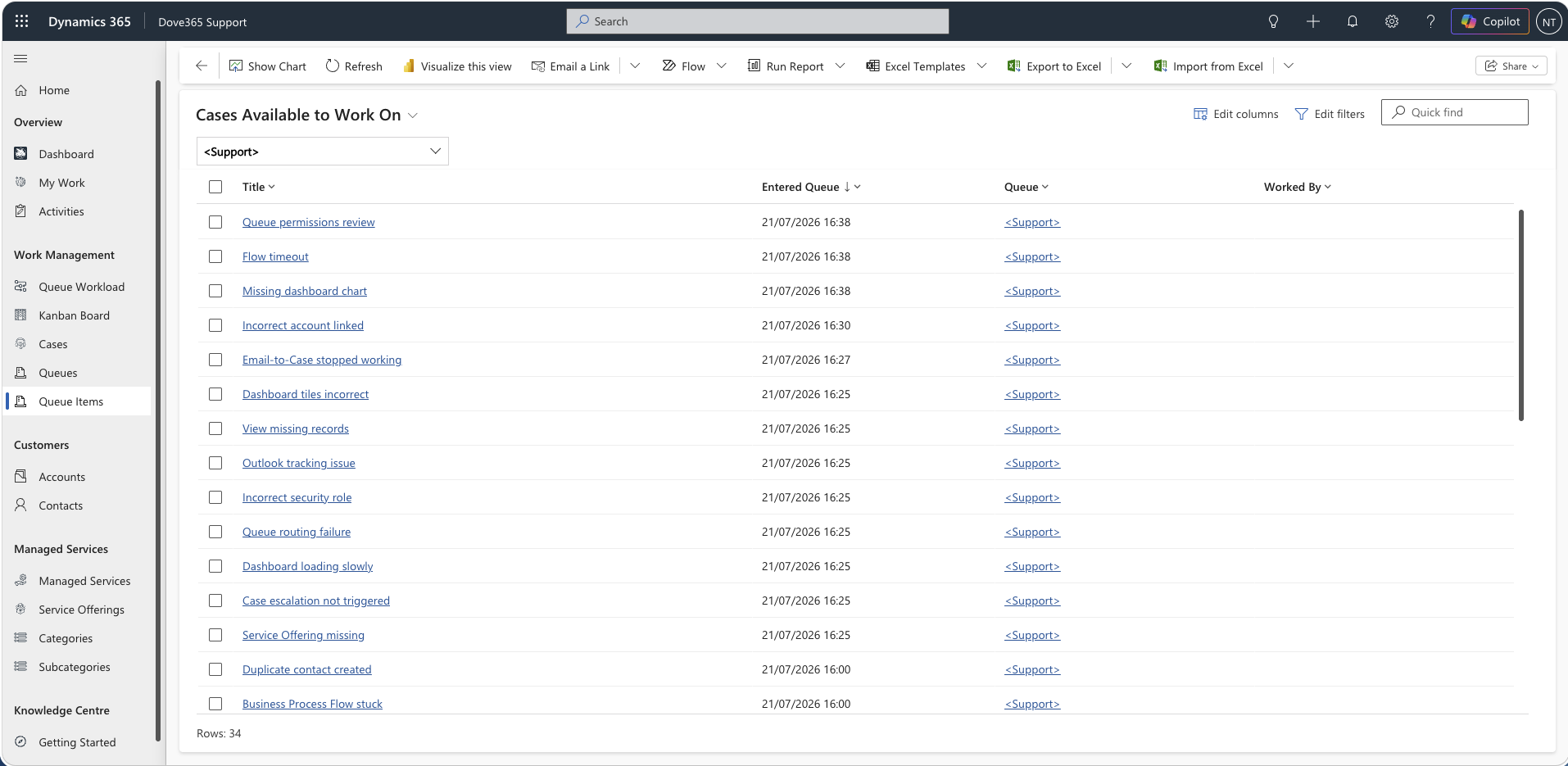
Queue Item lifecycle
- A Case is created manually or by email triage.
- The Case is added to a Queue as a Queue Item.
- If no user is working it,
Worked Byis blank. - A user picks or works the Queue Item.
Worked Byis populated.- The Queue Item appears in that user's My Queue Items.
- The Case is worked and eventually resolved.
Where users act on the lifecycle
Steps 3 to 6 are usually driven from a board rather than a list view.
- The Kanban Board picks up, assigns, progresses, releases, and escalates Queue Items by support state.
- The Queue Workload Board assigns, moves between queues, and releases Queue Items based on who is carrying the load.
Both boards set Worked By and route the Queue Item into the target user's queue. Releasing a Case returns the Queue Item to the configured default queue and clears Worked By, which is why dove365_DefaultQueueGUID must hold a current value.
Continue learning
Admin and Configuration Guide
Open the related Dove365 Support guide for the next part of this workflow.
Queues and Queue Items
Open the related Dove365 Support guide for the next part of this workflow.
Need help with Dove365 Support configuration?
Book a free call and get your questions answered directly by Dove365.