Kanban Board
Review queue work visually, pick up Cases, assign work to users, progress support states, release work back to triage, and escalate Cases.
A visual board for queue work
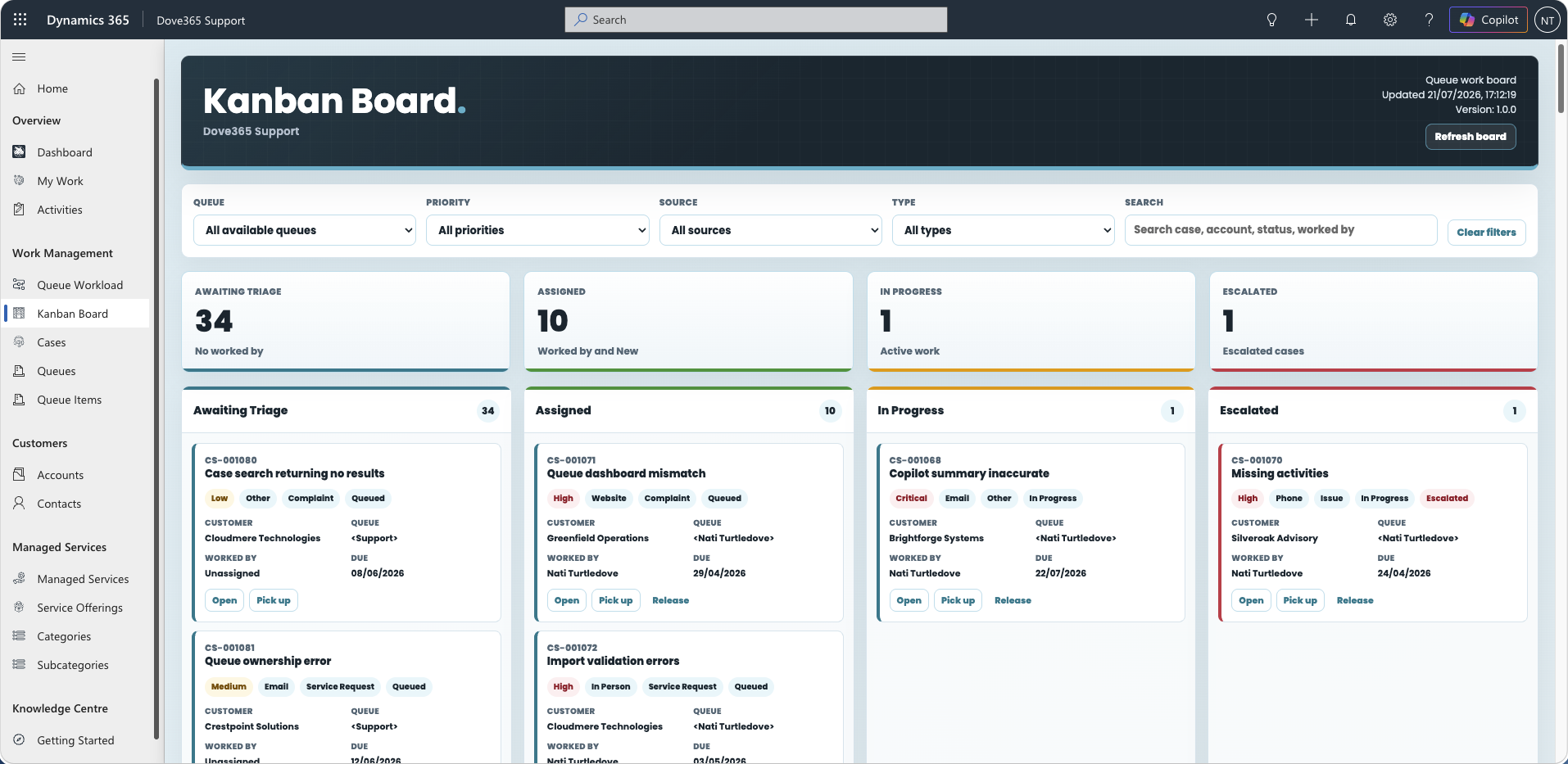
The Dove365 Kanban Board gives support users a visual way to review queue work, pick up Cases, assign Cases to users, move work through active support states, and escalate Cases that need manager attention.
The board is opened inside the Dove365 Support model-driven app and uses the signed-in user's Dataverse permissions.
When to use the Kanban Board
Use the Kanban Board when you want to:
- Review unassigned Cases waiting for triage.
- Pick up a Case from a queue.
- Assign a Case to another Dove365 user.
- Move a Case into active work.
- Escalate a Case to an escalation manager.
- Filter support work by queue, priority, source, type, or search text.
The Kanban Board organises Cases by working state. If you need to see who is carrying how much work, use the Queue Workload Board instead.
The four board columns
Awaiting Triage
Cases appear here when the related Queue Item has no Worked By user. Use this column for new or unassigned queue work.
Assigned
Cases appear here when the Queue Item has a Worked By user and the Case status is New, Queued, or Not Started. Use this column for work that has been allocated but has not yet moved into active progress.
In Progress
Cases appear here when the Queue Item has a Worked By user and the Case is in an active support status such as In Progress, Waiting on Customer, Waiting on Third Party, or Delayed.
Escalated
Cases appear here when the Case is marked as escalated, has a Worked By user, and is still in an active support status. Use this column for Cases that need manager or specialist attention.
Filtering the board
The filter bar appears above the board.
- Queue: limits the board to a selected queue.
- Priority: limits the board by Case priority.
- Source: limits the board by Case source.
- Type: limits the board by Case type.
- Search: searches Case title, Case number, customer, priority, source, type, status, worked-by user, and queue name.
Use Clear filters to reset the board.
What each card shows
Each card shows key Case and Queue Item information:
- Case number and Case title.
- Next action, where populated.
- Priority, source, and type.
- Status.
- Customer and queue.
- Worked By.
- Due date or target date.
Select Open to open the Case record.
Pick up a Case
Use Pick up when you want to work an unassigned or available Case yourself. Dove365 Support then attempts to:
- Set the Queue Item
Worked Byuser to you. - Route the Queue Item to your user queue.
- Set the Case status to
New. - Refresh the board.
After a successful pick up, the Case should appear in Assigned.
Assign a Case to another user
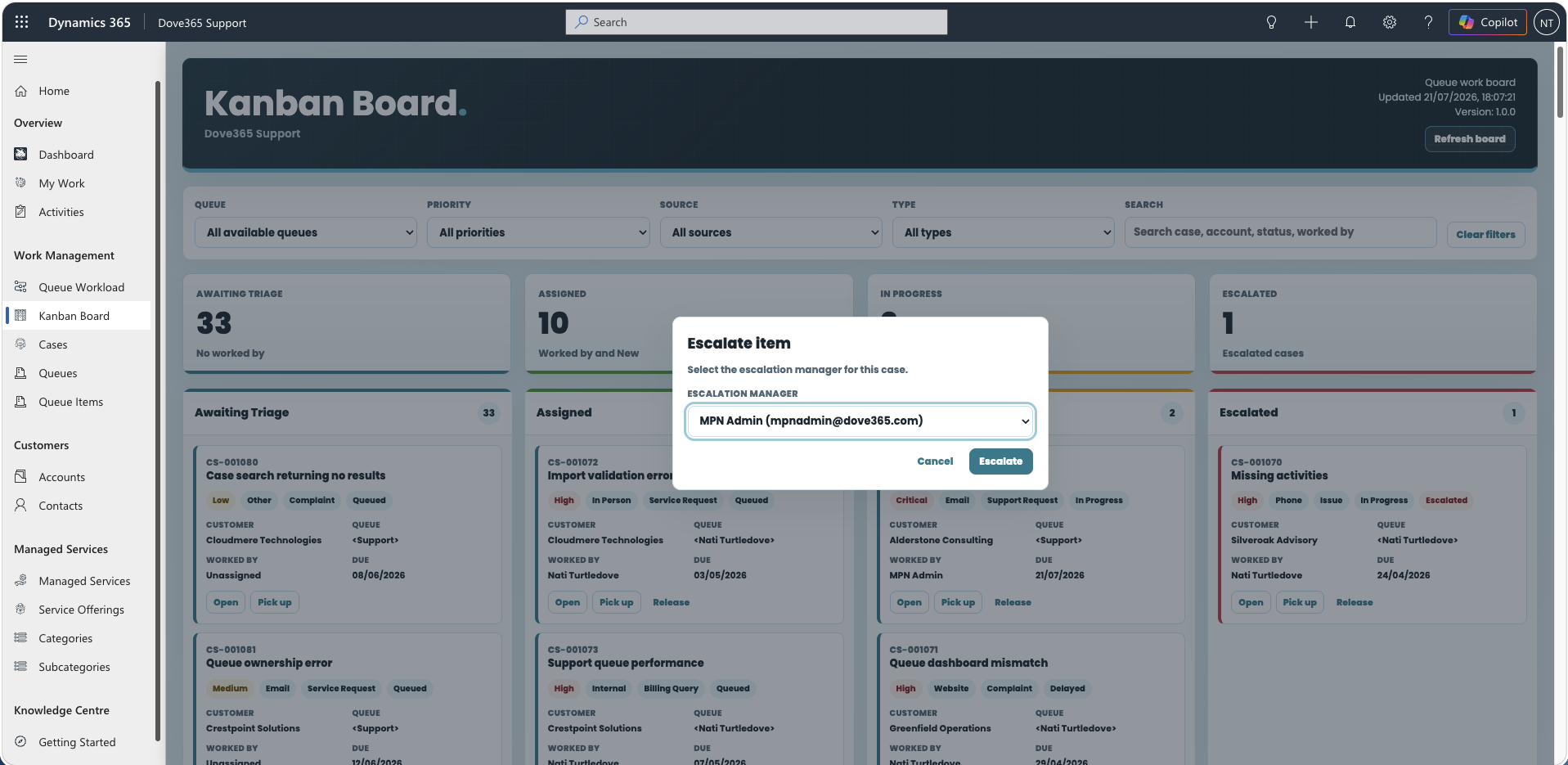
- Drag the card to Assigned.
- Select the Dove365 user who should work the Case.
- Confirm the assignment.
When assignment is confirmed, Dove365 Support sets the Queue Item Worked By user, routes the Queue Item to that user's queue, sets the Case status to New, and refreshes the board. The user list is based on the Dove365 Users view.
Move a Case to In Progress
Drag a card to In Progress when work has started. If the card is not already worked by a user, Dove365 Support assigns it to the signed-in user before moving it. Moving to In Progress updates the Case status and refreshes the board.
Escalate a Case
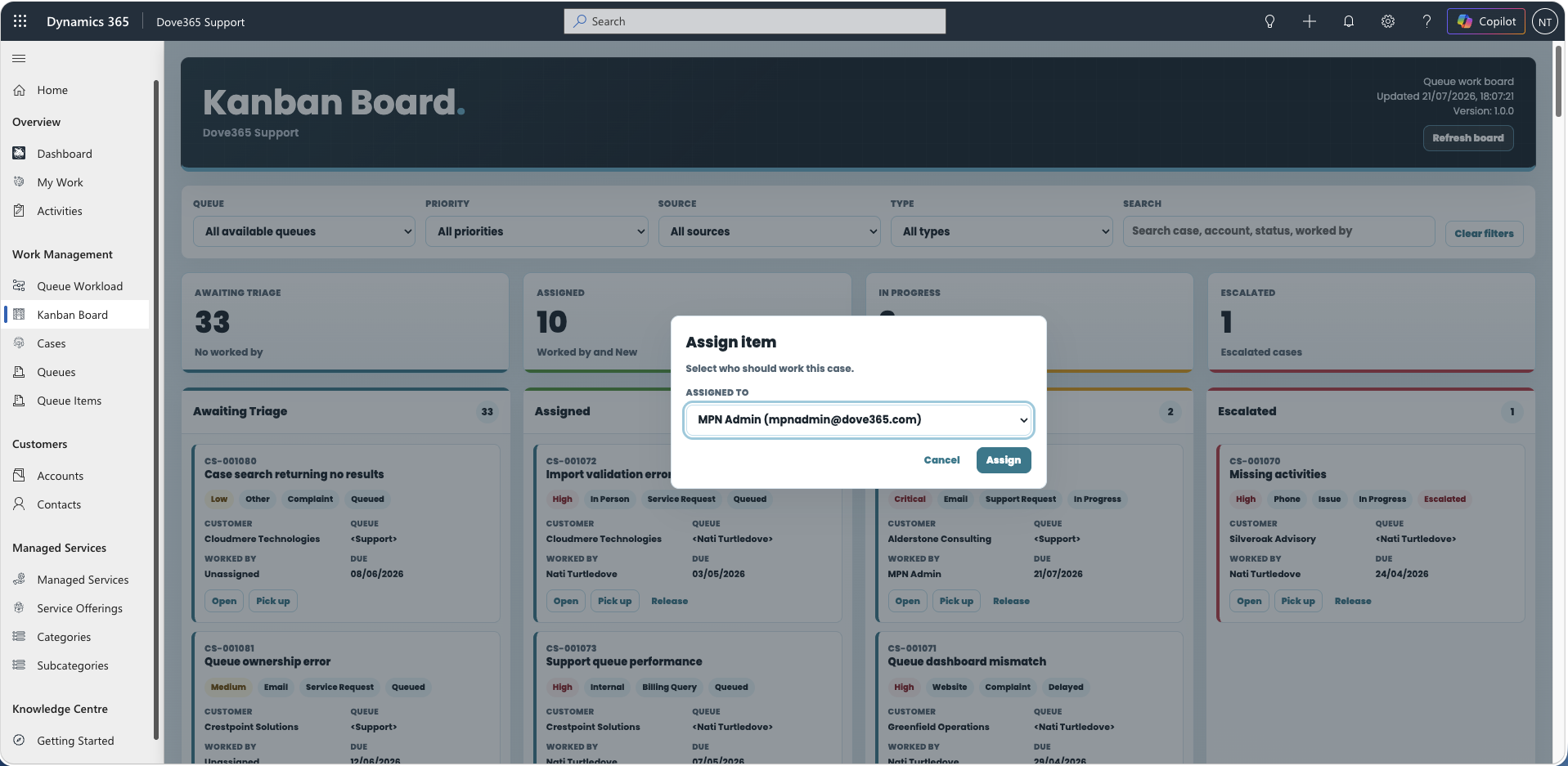
- Drag the card to Escalated.
- Select the escalation manager.
- Confirm the escalation.
Dove365 Support then ensures the Queue Item has a Worked By user, routes the Queue Item to the working user's queue where needed, sets the Case as escalated, populates the escalation manager, moves the Case into an active support status, and refreshes the board.
The Notify Case Escalation Manager automation notifies the escalation manager when the Case is escalated.
Release a Case
Use Release when you are no longer working a Case and it should return to triage. Dove365 Support then attempts to:
- Clear the Queue Item
Worked Byuser. - Move the Queue Item back to the default queue.
- Clear the Case escalation flag.
- Refresh the board.
The Release button is hidden for Cases already in Awaiting Triage.
How the board reads queue work
The Kanban Board works from Queue Items, not only from Case records.
- A Case may have more than one Queue Item.
- The board only shows active Queue Items available to the user through the current queue scope.
Worked Bycontrols who is actively working the Queue Item.- The Case owner is separate from the Queue Item queue and
Worked Byuser. - Routing to a user's queue depends on that user having an active queue that Dove365 Support can identify.
Admin requirements
Admins should confirm:
- The default queue environment variable
dove365_DefaultQueueGUIDis configured. - Support users have active Dataverse user records.
- Dove365 users are included in the Dove365 Users view.
- Each support user has an active user queue or queue membership that can be used for routing.
- Users have permission to read Cases, read Queue Items, update Queue Items, update Cases, and use queue actions.
- The Kanban Board web resource is available in the Dove365 Support model-driven app.
Trouble shooting
A Case does not appear on the board
- Confirm the Case has an active Queue Item.
- Confirm the Queue Item points to a Dove365 Case.
- Confirm the selected queue filter is correct.
- Confirm the user's security role allows access to the Case and Queue Item.
- Clear filters and refresh the board.
A picked Case does not move to Assigned
- Confirm the Queue Item
Worked Byfield has been populated. - Confirm the Case status is
New,Queued, orNot Started. - Confirm the user has an active queue.
- Confirm queue routing permissions.
- Refresh the board after assignment.
Assignment or escalation fails
- Confirm the selected user is active.
- Confirm the selected user appears in the Dove365 Users view.
- Confirm the current user has permission to update the Case and Queue Item.
- Confirm the Case status transition is allowed.
- Ask an admin to review browser console errors and Dataverse plugin or flow run history.
Continue learning
Queue Workload Board
Balance work across the team by seeing who is carrying how much load, then reassign or reroute Cases.
Queues and Queue Items
Understand support intake, default queues, Worked By ownership, and picked work.
Need help with Dove365 Support configuration?
Book a free call and get your questions answered directly by Dove365.