Daily Support Workflow
A practical day-to-day workflow for working queues, cases, support activities, managed services, and dashboards in Dove365 Support.
Use this as the daily runbook
Use this guide when you are working support items in the Dove365 Support app. It focuses on the normal daily sequence: check dashboards, pick queue work, update Cases, log Support Activities, review Managed Service context, then resolve or hand over the work.
For detailed field-by-field guidance, use the related record guides linked at the end of this page.
Start with your dashboard
- Open the Dove365 Support app.
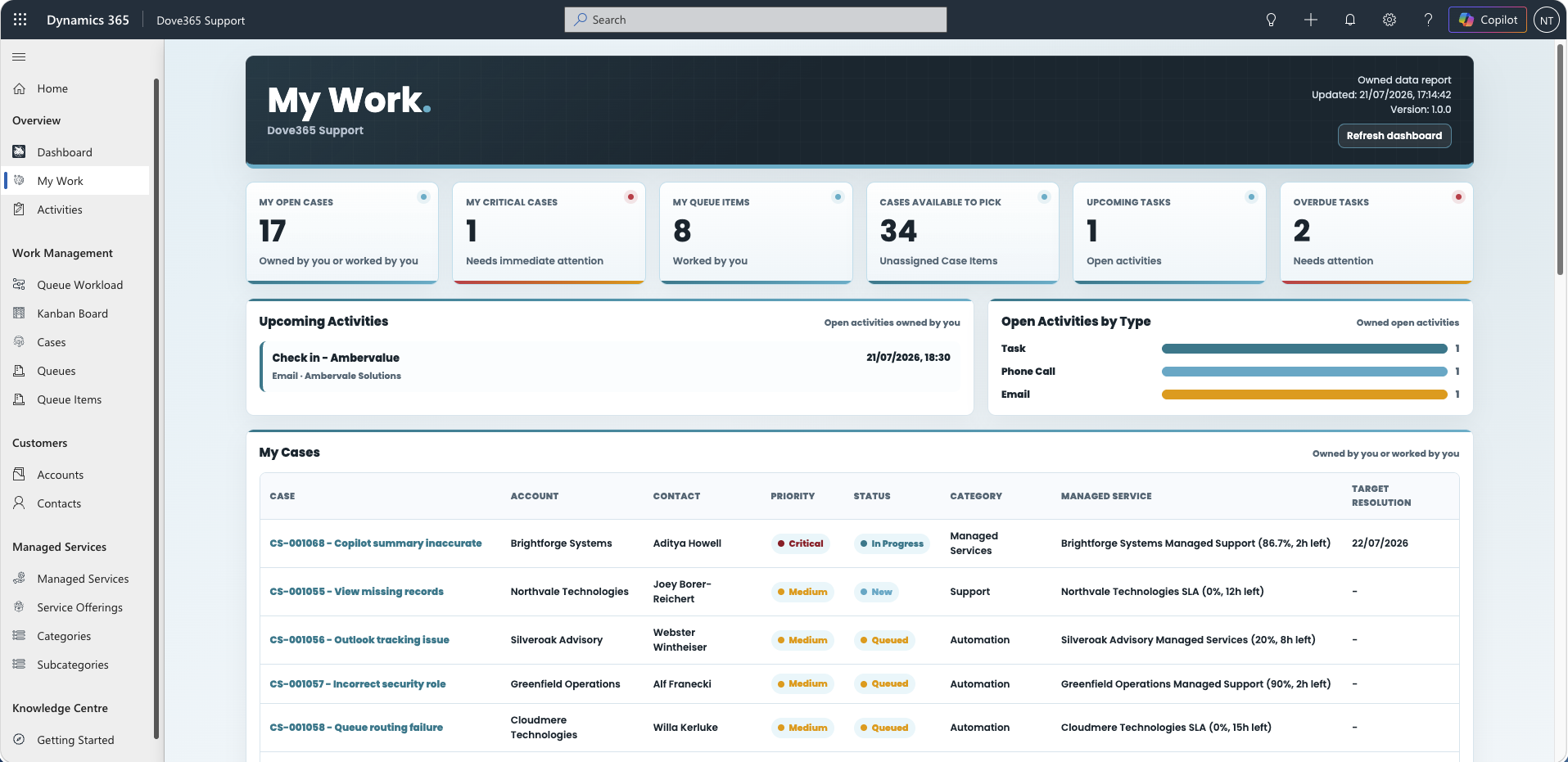
- Open the My Work dashboard.
- Review
My Queue Itemsto see work currently assigned to you through Queue ItemWorked By. - Review
My Open Casesto see active Cases in your queue. - Review
Cases Available to Pickto understand unassigned work in the default queue. - Review overdue activities before starting new work.
- Open high-priority or overdue Cases first.
Pick or review queue work
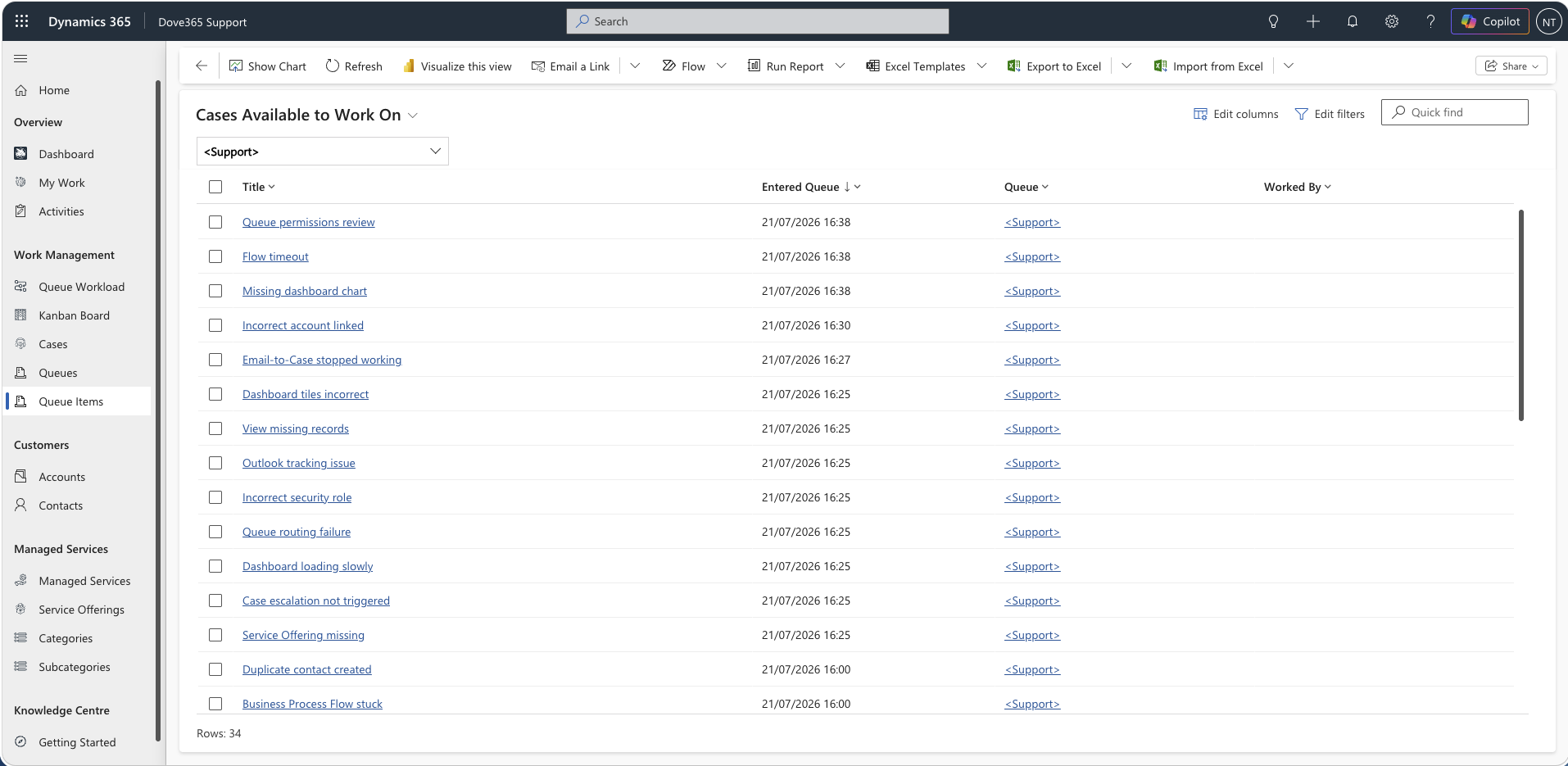
Use Queue Items to understand what work is available, what is already being worked, and what needs assignment.
- Open the relevant queue or available queue items view.
- Check whether the item is already being worked.
- Pick the item when you are taking ownership.
- Open the related Case before starting investigation.
Picking an item sets the Queue Item Worked By user to you and routes the item to your queue, so the work shows in My Queue Items and stops other users from duplicating it.
Work the boards instead of the list
Two boards make the same queue work easier to handle than a raw queue item list. Both are opened inside the Dove365 Support app.
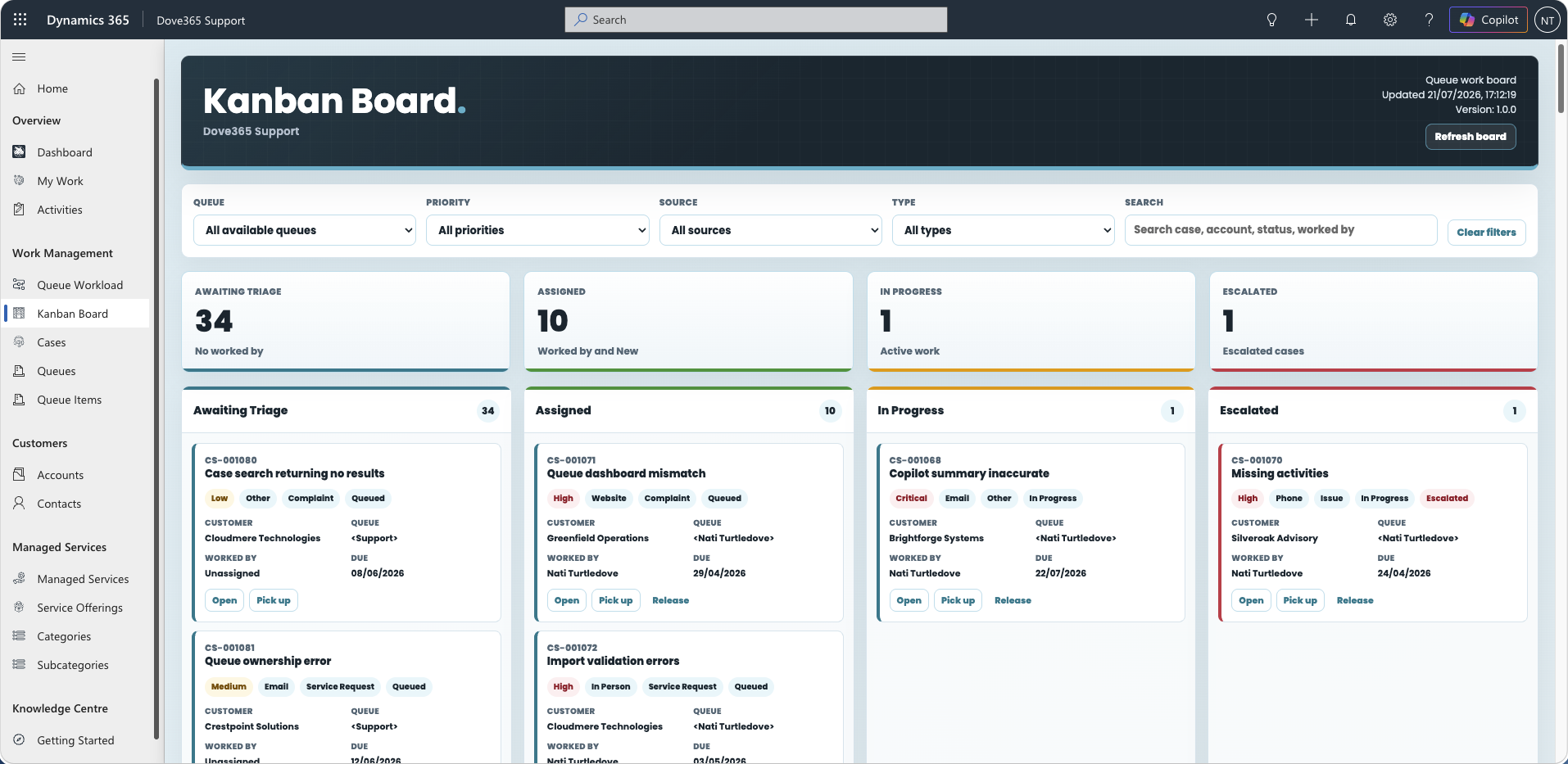
Kanban Board
Use the Kanban Board when you want to see queue work by support state — Awaiting Triage, Assigned, In Progress, and Escalated. From the board you can pick up a Case, assign it to another Dove365 user, drag it into In Progress, release it back to triage, or escalate it to an escalation manager.
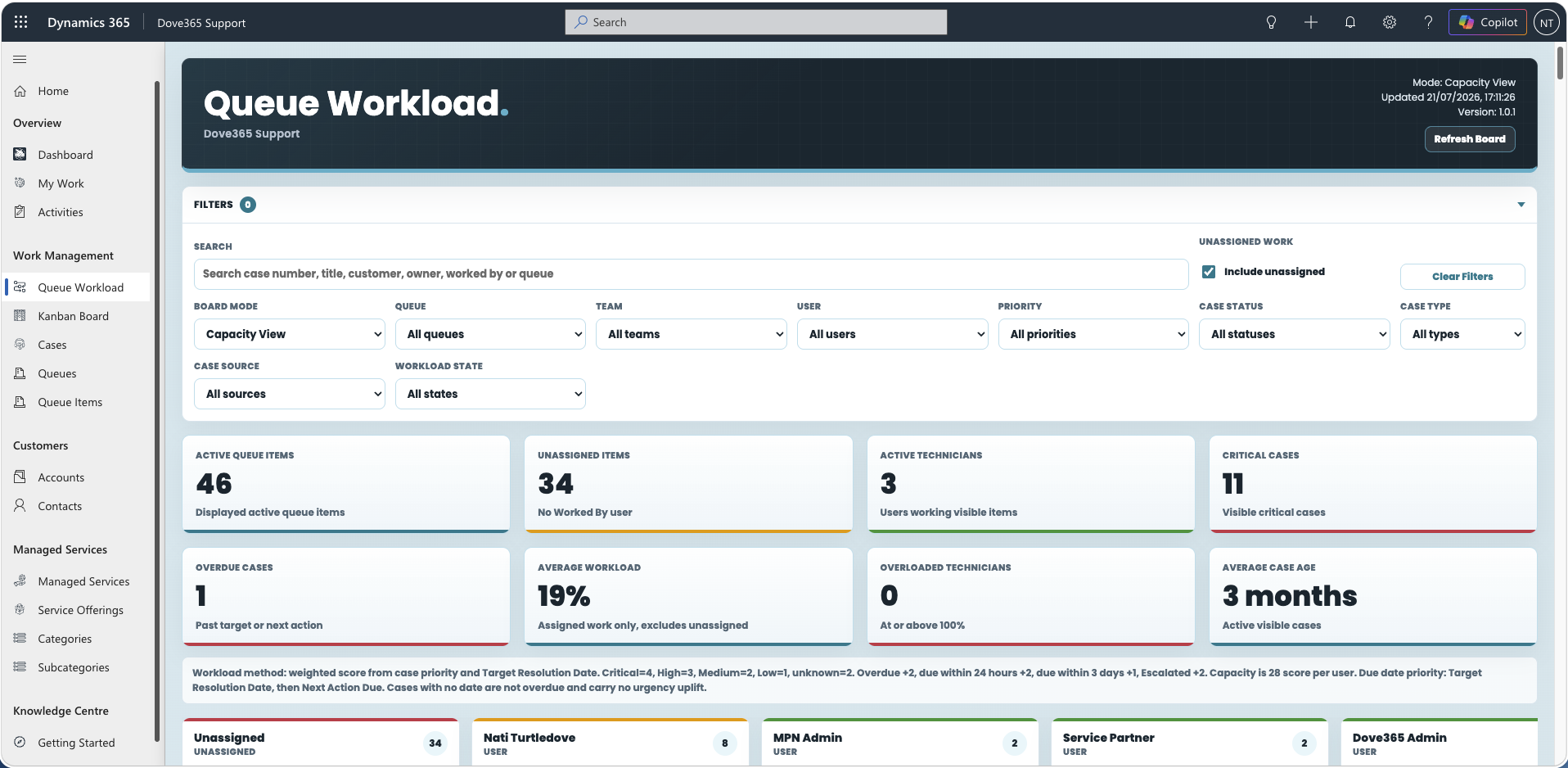
Queue Workload Board
Use the Queue Workload Board when you need to see who is carrying how much work. It groups the same queue work by user, team, or queue, scores each Case on priority and target resolution date, and shows each lane's capacity as Available, Healthy, Busy, or Overloaded. Use it to find spare capacity and rebalance before service is affected.
Both boards need queue membership to work properly. You only see work in public queues, queues you are a member of, and the default queue — and work can only be routed to a user who has an active queue of their own.
Rebalance when someone is overloaded
On the Queue Workload Board, drag a card into another lane or use the buttons on the card:
Assignmoves the Case to a selected user, routing the Queue Item into that user's queue.Pick Upassigns unassigned work to you.Move to Queuemoves the Case to another queue without changingWorked By.Releasereturns the Case to the default triage queue and clearsWorked By.
The confirmation warns you when a move will push the target above 100 per cent capacity. The warning does not block the move — it is there so overload is a decision rather than an accident.
Update the Case
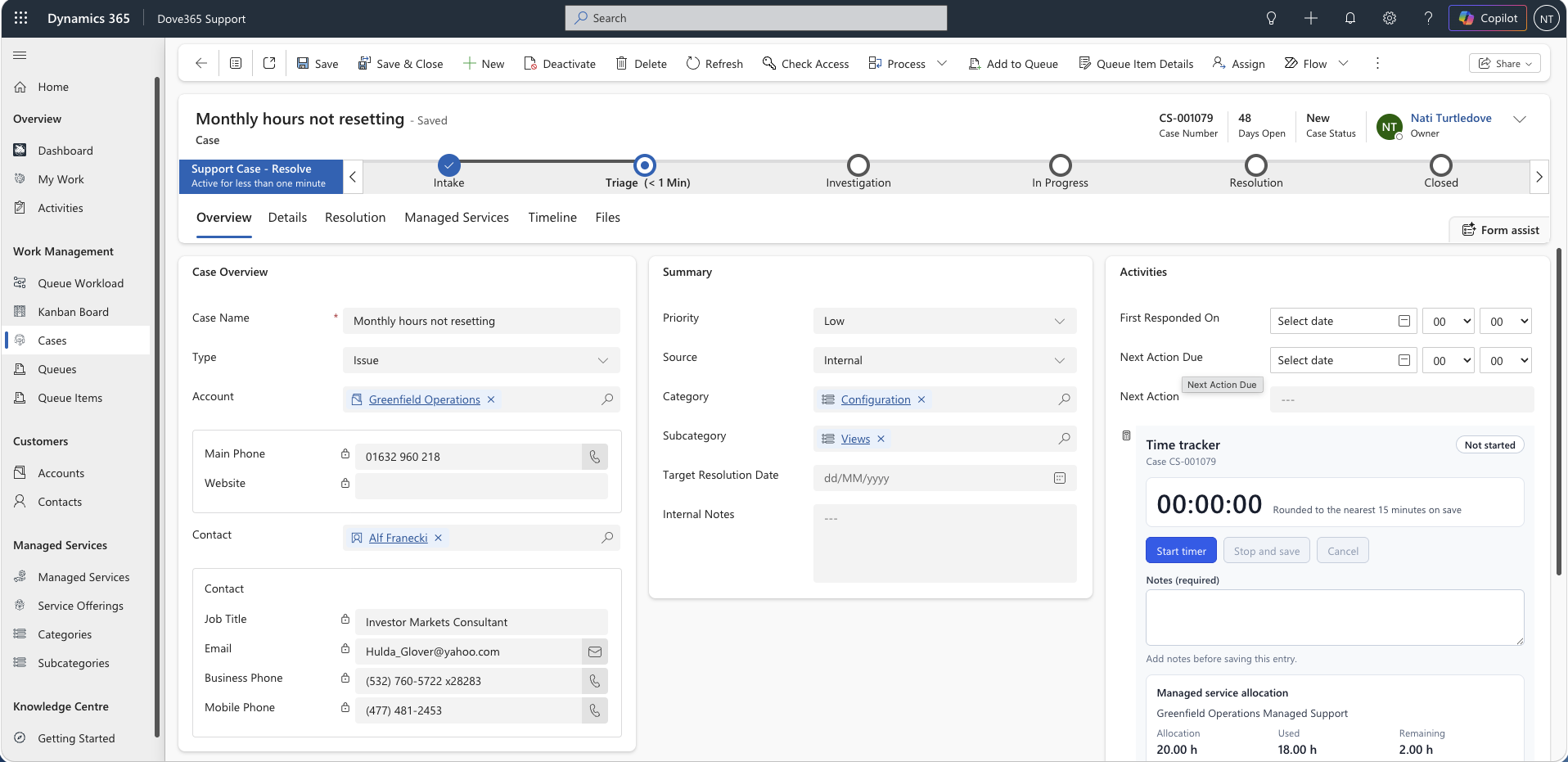
The Case is the main support work record. Before doing detailed work, make sure the Case has the correct customer, classification, service context, owner, and priority.
- Confirm the Account and Contact are correct.
- Set Category, Subcategory, Service Offering, and Managed Service where applicable.
- Record investigation notes and customer updates on the Case timeline.
- Escalate only when another owner or manager needs to intervene.
Log support activity
Use Support Activities to record the work performed against a Case, including time spent and service delivery notes. This keeps the Case history complete and supports Managed Service usage rollups.
- Log meaningful notes while the work is fresh.
- Record time against the correct Case.
- Use Support Activities for support delivery work, not just generic activity history.
- Check the related Managed Service when time should affect allocation usage.
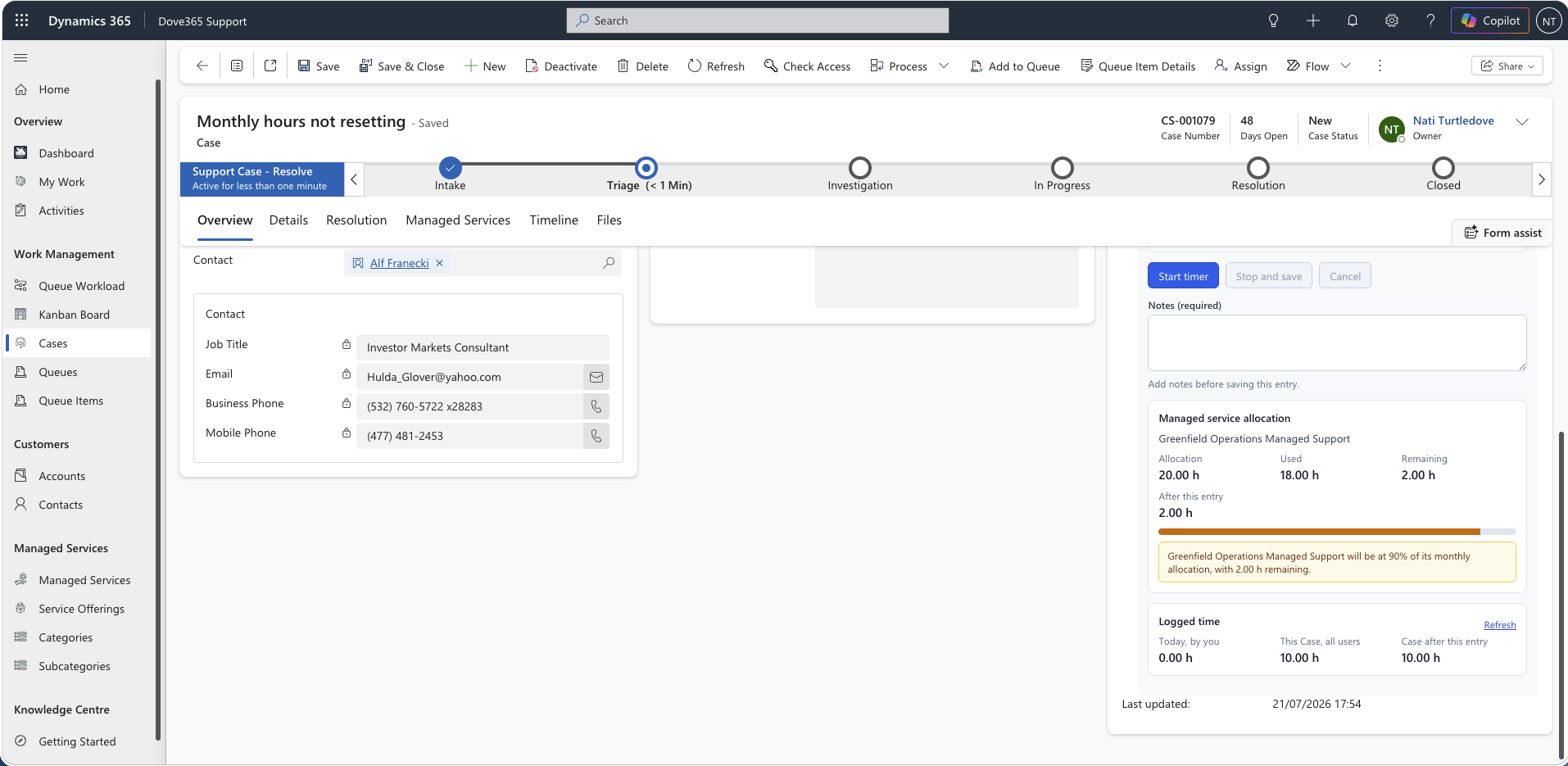
The quickest way to log time is the Support Activity Time Tracker on the Case form. Start the timer when you begin, pause and resume as you switch tasks, then Stop and save. The tracker writes a completed Support Activity rounded to the nearest 15 minutes and shows how much you have logged today and how much has been logged against the Case in total. It also warns you before the time lands if the Case is linked to a Managed Service that is close to, or over, its allocation.
Check managed service context
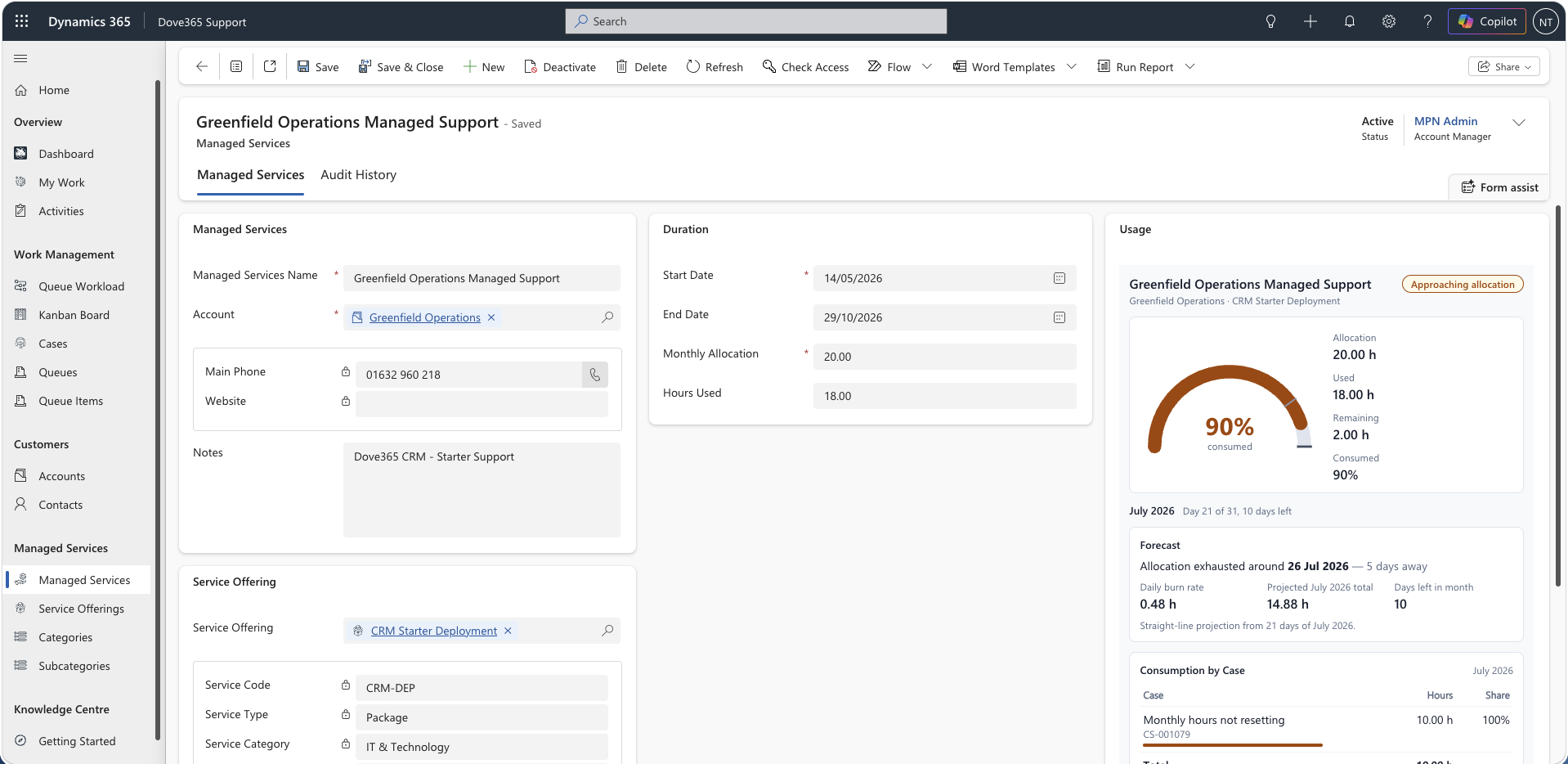
When a Case is linked to a Managed Service, check the service allocation before committing more work. This gives users and account managers the context they need before hours increase.
- Confirm the selected Managed Service is the right one for the customer and service type.
- Review allocation, hours used, and hours remaining.
- Flag exceptions or over-allocation risks to the account manager.
Resolve, reassign, or hand over
Finish each item with a clear next state. A Case should not sit open without ownership, current notes, or a next action.
- Resolve the Case when the customer issue is complete.
- Reassign or escalate the Case if another user needs to continue it.
- Leave clear notes for the next person if the Case remains open.
- Return to My Support Work to pick the next item.
Continue learning
Queues and Queue Items
Go deeper on queue records, Queue Items, default queues, and picked work.
Cases
Review the detailed Case lifecycle, classification, investigation, escalation, and resolution guidance.
Kanban Board
Pick up, assign, progress, release, and escalate queue work from a visual board.
Time Tracker
Log support time straight from the Case form, with rounding and allocation warnings.
Need help with Dove365 Support configuration?
Book a free call and get your questions answered directly by Dove365.