Support Activity Time Tracker
Log support time directly from the Case form. Start, pause and stop a timer, save a Support Activity, and see allocation warnings before the time lands.
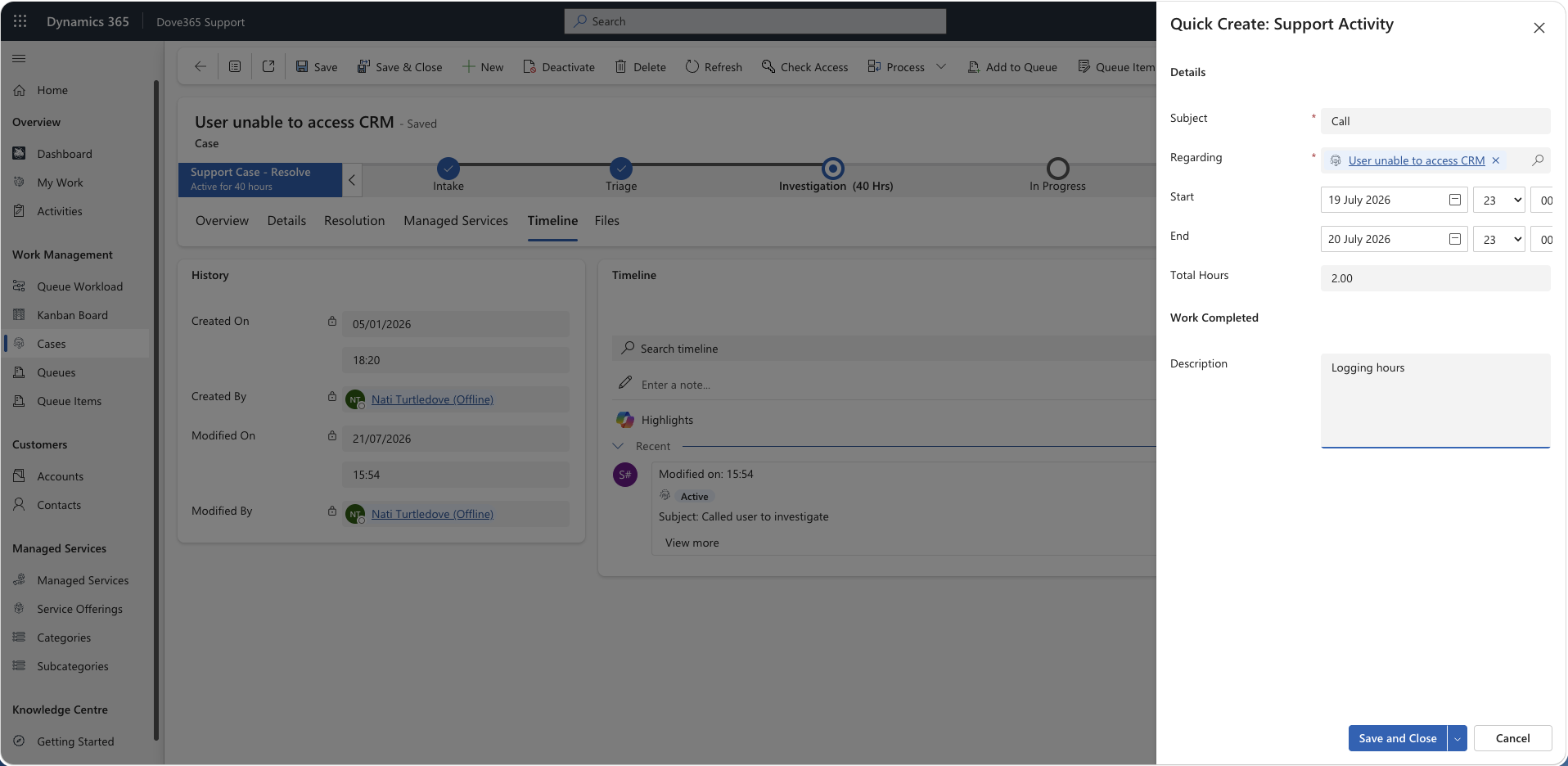
Track time directly on the Case
The Dove365 Support Activity Time Tracker is a component on the Dove365 Case form. Support users start, pause, resume and stop a timer. On stop, the control writes a completed Support Activity record against the Case, rounded to the nearest 15 minutes, and shows how much time you have logged today and how much has been logged against the Case in total.
No standard Task, Appointment or Phone Call records are created. The tracker writes a Support Activity, so the time flows into the Case hours rollup and the Managed Service usage figures in the normal way.
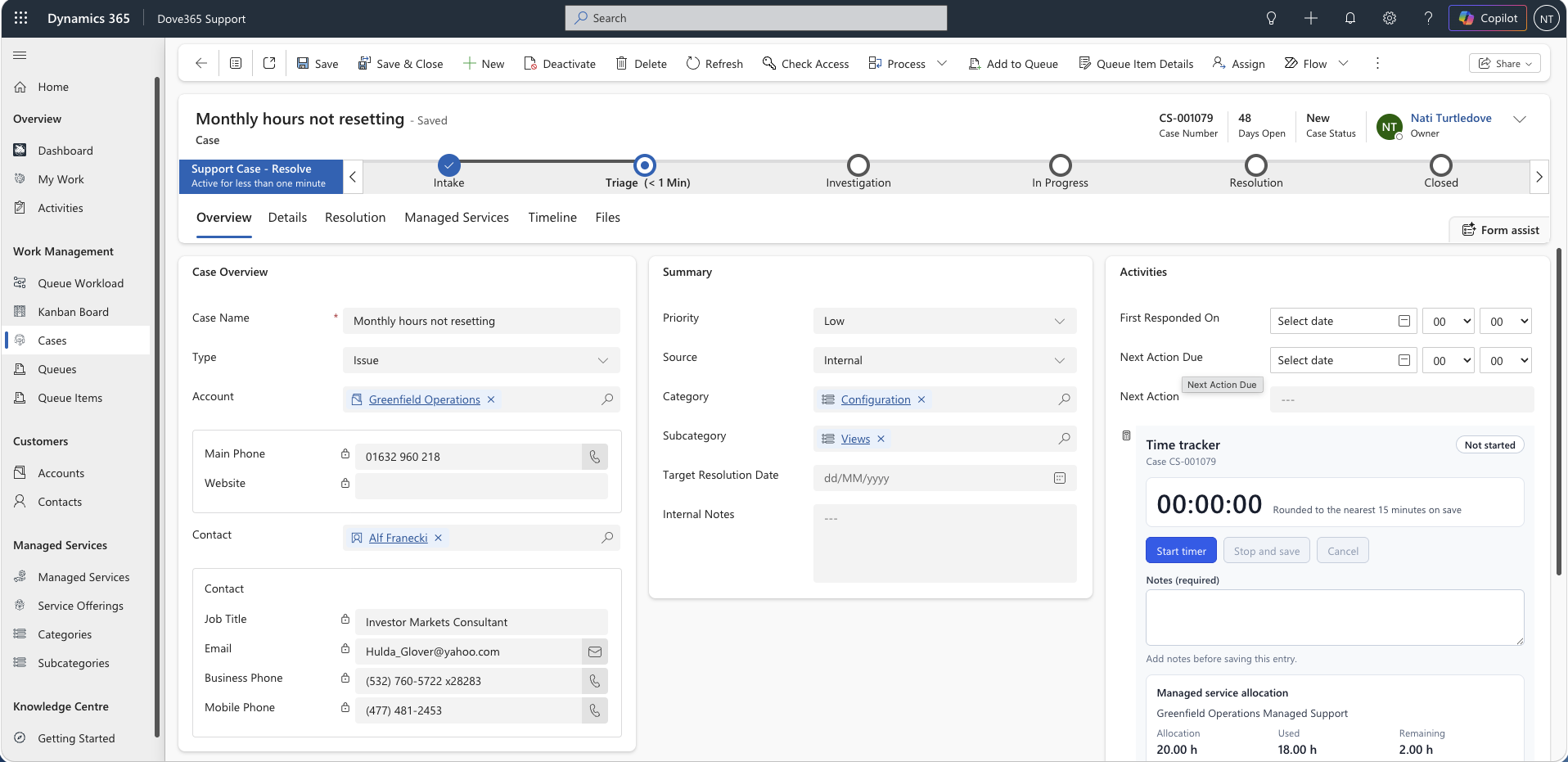
Start, pause, and save
- Start timer: records the start instant. This becomes the activity start time.
- Pause: banks the elapsed segment. Paused time is never counted.
- Resume: starts a new segment; the original start instant is kept.
- Stop and save: creates the Support Activity, sets it to Completed, clears the timer, and refreshes the totals.
- Cancel: asks for confirmation, then discards the tracked time. Nothing is written.
The running timer is kept in browser storage, keyed by user and Case, so a form reload, navigating away, or a closed tab does not lose in-flight time.
Rounding and minimum duration
Elapsed working time is rounded to the nearest 15 minutes by default, with exact halves rounded up, matching the Managed Service aggregation plugin.
Any non-zero session is lifted to the minimum chargeable duration — 15 minutes by default — so a three minute call is saved as 15 minutes rather than zero. This also satisfies the Total Hours cannot be 0 or less business rule on Support Activity.
Today and Case totals
Today, by you aggregates Support Activity for the signed-in user using the today operator, evaluated in your own time zone.
This Case sums Total Hours for every Support Activity regarding the Case, with no state filter, exactly as the aggregation plugin does.
If an aggregate query fails, the control falls back to the Case Hours Spent rollup and tells you it has done so.
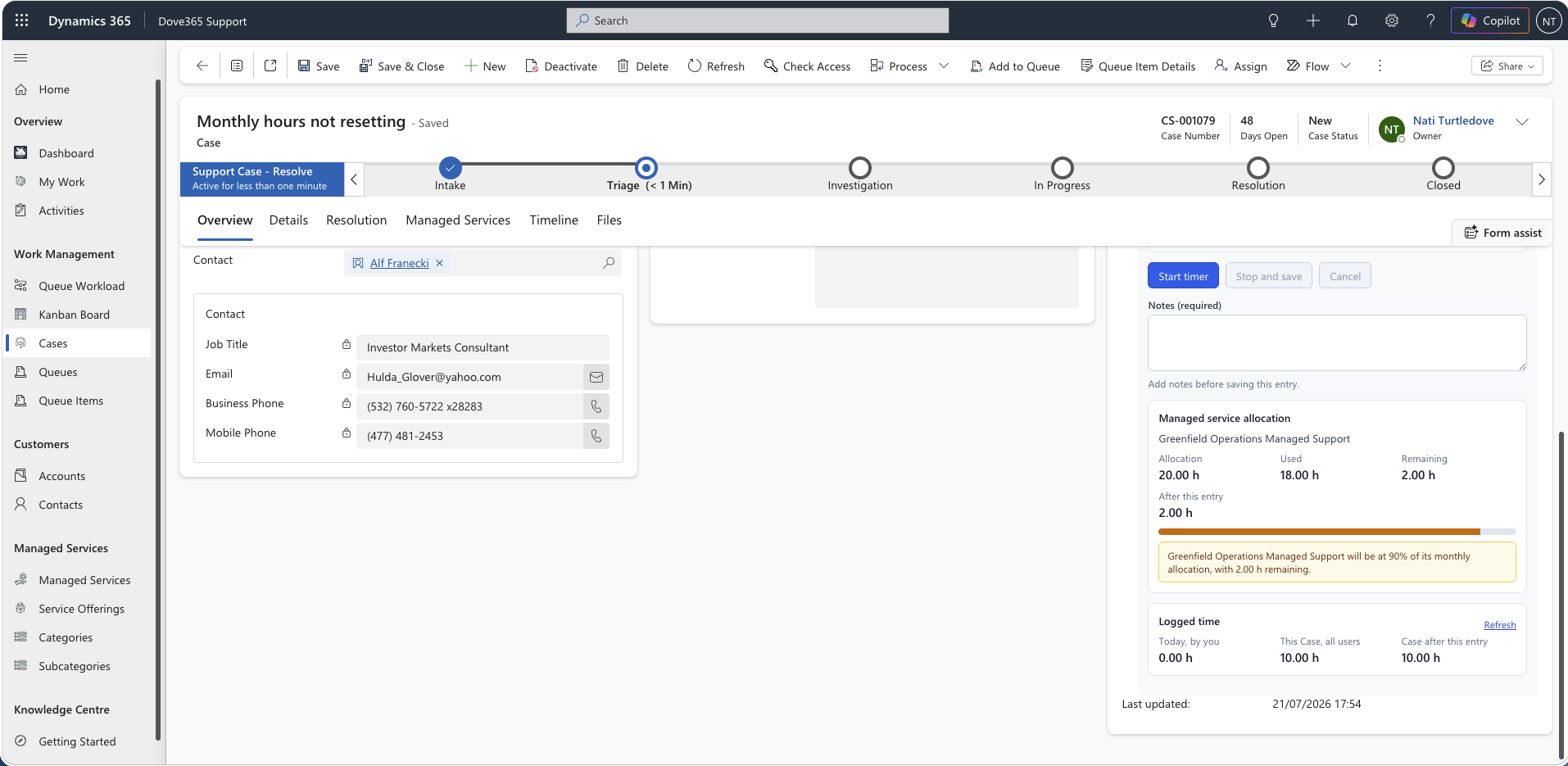
Managed service warnings
Where the Case is linked to a Managed Service, the tracker shows an allocation panel and warns you before the time is saved.
- Error: projected usage would exceed the monthly allocation.
- Warning: projected usage at or above the warning threshold, 80 per cent by default.
- Warning: Case flagged as Managed Service but no Managed Services record linked.
- Warning: Managed Services record has no monthly allocation.
- Warning: agreement has ended, or has not started yet.
- Info: Case linked to a Managed Service but the Managed Service flag is off.
Warnings are advisory. The tracker never blocks a save — support work still has to be recorded.
How time reaches the Managed Service
- The tracker creates a Support Activity with Total Hours.
- The Case
Hours Spentrollup sums Total Hours for its Support Activities. - The
Aggregate Managed Services Hoursplugin fires on Support Activity create, update, and delete. For each impacted Case flagged as managed-service related and holding a Managed Services lookup, it recalculates and writesHours Used, rounded to the nearest quarter hour. Hours RemainingandUsage Percentagerecalculate fromHours Used.- The daily 80 per cent threshold and monthly allocation reset automations act on the result.
The plugin sums all Support Activity Total Hours, so every entry the tracker creates draws down the allocation.
Admin configuration
The control is bound to the Case form field Hours Spent. The binding gives the control a fallback total; the control never writes to that field.
- Rounding Increment — default 15. Options are 5, 6, 10, 15, 30, or 60 minutes.
- Minimum Chargeable Minutes — blank by default, which tracks the rounding increment.
- Require Notes — default No. When Yes,
Stop and saveis disabled until notes are entered. - Subject Prefix — default
Time logged. The subject becomesprefix – case number – duration. - Today Totals Basis — default Actual End. Sets which date drives the logged-today figure.
- Managed Service Warning Threshold — default 80 per cent. Zero disables the threshold warning.
- Idle Warning Minutes — default 240. Warns about a timer left running. Zero disables.
Adding it to the Case form
- Open the Case main form in the modern designer.
- Add the Hours Spent field to the form.
- With the field selected, choose Components → Get more components → Dove365 Support Activity Time Tracker, and enable it for Web, Phone and Tablet.
- Hide the field label, and give the section enough height — about 420px — for the panels.
- Save and publish.
Required privileges
Users need Create, Read and Write on Support Activity, Read on Case, and Read on Managed Services to see the allocation panel. Without the Managed Services read privilege the tracker still works — the allocation panel is simply omitted.
Accessibility notes
- The stopwatch is a live region announced at minute granularity, so a screen reader is not interrupted every second.
- Errors are announced as alerts; status and success messages are announced as status.
- The cancel confirmation is a modal alert dialogue.
- The allocation meter is a progress bar with a spoken value.
- Every control is keyboard reachable with a visible focus outline, and Windows High Contrast is supported.
Continue learning
Activities and Support Activities
Know when to use standard activities, when to use Support Activities, and how hour rollups work.
Managed Services
Track allocation, hours used, hours remaining, and usage percentage for customer accounts.
Need help with Dove365 Support configuration?
Book a free call and get your questions answered directly by Dove365.